Tune Raven to how you work: standing instructions, scripting on or off, which expert profile is active, and which plugins it knows about.
1. Custom prompt
Free-text instructions appended to Raven's system prompt on every message. This is your standing brief.
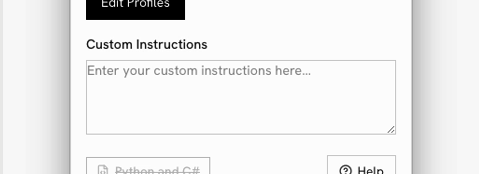
Typical uses:
- "Always answer in German."
- "Use imperial units " (idk why you'd do that, but OK...)
- "Follow our office naming convention: groups prefixed with the discipline code."
- "Prefer native components over plugins where possible."
2. Scripting ON or OFF (Python / C#)
On by default. Turn it on and Raven may write Python and C# script components instead of only wiring native components.
| Off | On |
|---|---|
| Limited. | Infinite possiblities ! |
| Native components and installed plugins only | Raven can also author script components |
| Fully inspectable, no code review needed | Handles logic that would be painful to wire by hand |
Raven switches to a scripting-aware prompt when this is enabled, so it's a genuine behaviour change rather than just a permission.

3. Context profile selection
A dropdown to activate a context profile for the chat — your own, or a public one.
Selecting Standard returns Raven to its default behaviour. Official profiles carry an
official badge.
The Edit Profiles button next to it opens the Context Profile Editor in your browser. Full detail in context-profiles.md.
Note: Learn mode overrides this selection with the official Raven Learn profile while it's active (see modes.md).
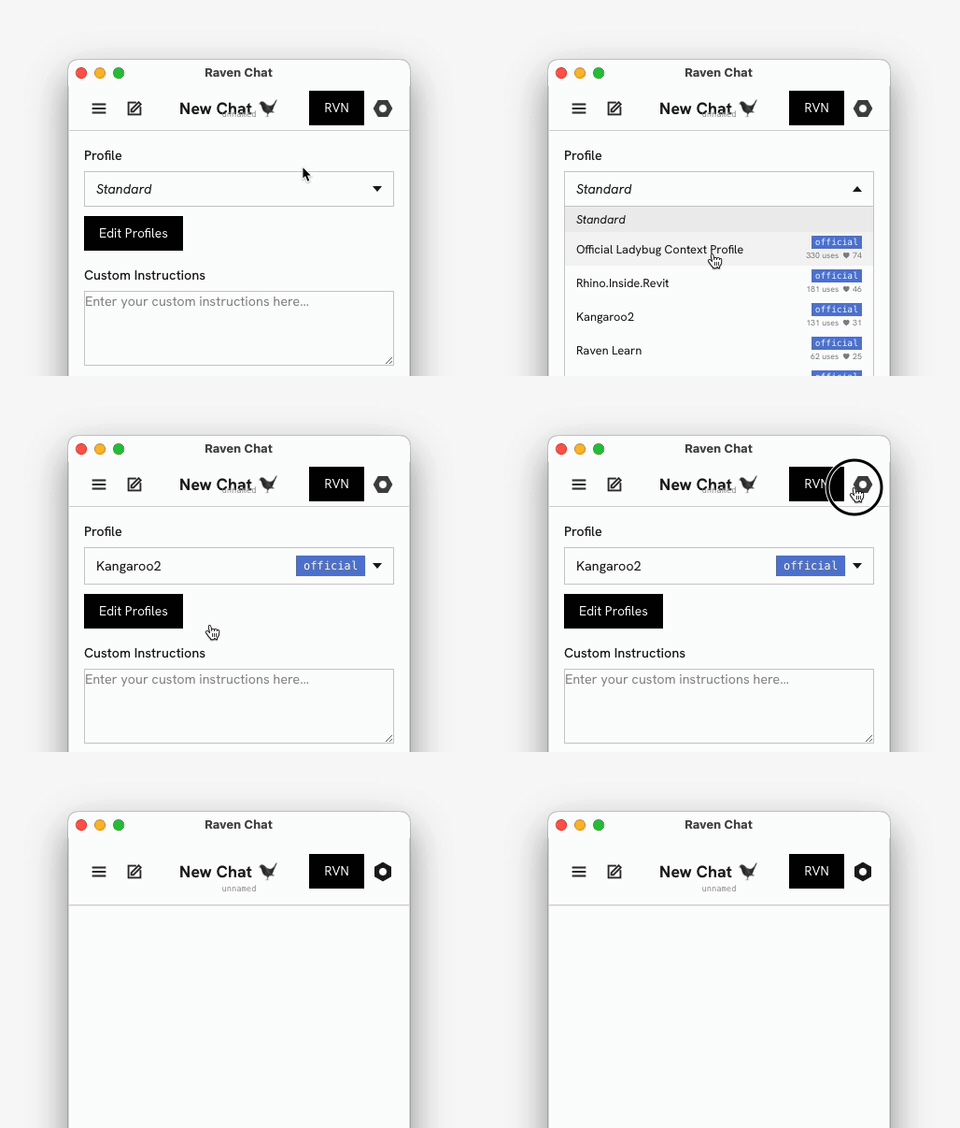
The dropdown lists each profile with its official badge, use count and likes —
Official Ladybug Context Profile, Rhino.Inside.Revit, Kangaroo2, Raven Learn,
Nanobanana Viewport Renderer, ArchiCAD. Once a profile is active its name is shown
under the composer, so you always know which agent you're talking to.
4. Installed plugins
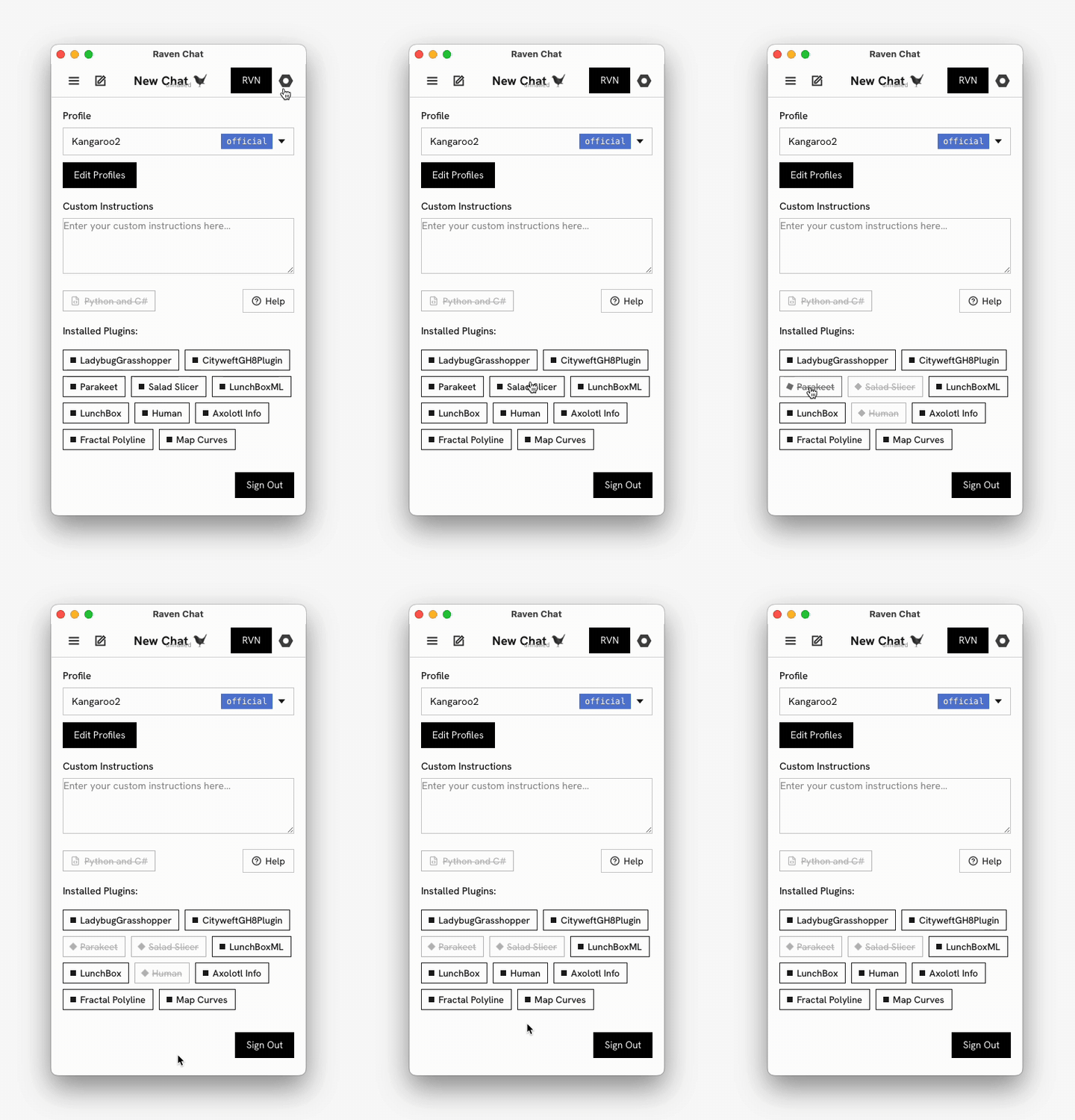
Raven detects your installed Grasshopper plugins and lists them here. Click one to disable it — Raven will then stop building with it.
Why you'd want that:
- You're producing a definition for a colleague who doesn't have that plugin.
- You want a native-only solution.
- A plugin is installed but you don't want it in this project.
Disabled plugins are struck through and greyed out — here Parakeet, Salad Slicer and
Human are off while LadybugGrasshopper, CityweftGH8Plugin and LunchBoxML stay
available:
Talking points
- Custom prompt = office standards enforced on every message, for free.
- Scripting is opt-in — teams that don't want code in their definitions never get it.
- Plugin toggles keep deliverables portable.