Raven lives in a chat panel docked in Grasshopper. You describe what you want, Raven builds it on the canvas — and every step it takes is reversible.
1. Chatting
Open Grasshopper, click Raven in the bottom right corner, and start typing.
- Chat history — every conversation is saved and reachable from the sidebar. Pick up a definition you started last week.
- New chat — starts a fresh context. Use it when you switch to a different task.
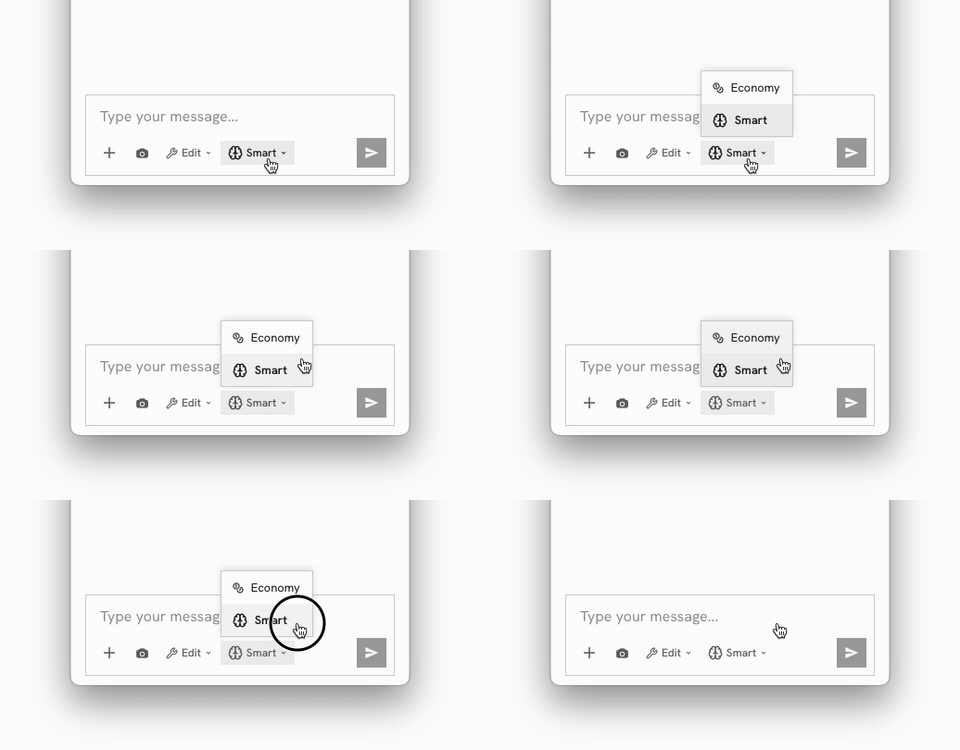
- Model selector — Economy for quick edits, Smart for reasoning through harder geometry and logic problems.
- Raven always sees your current canvas, so you can say "make the towers taller" instead of describing the whole definition again.
The composer carries everything you need per message: attachments, mode, model, and the viewport-capture button.
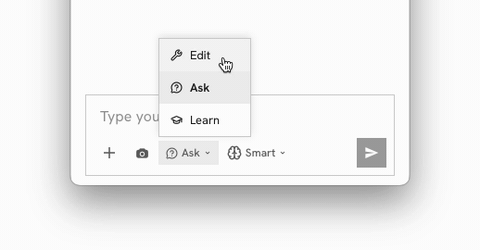
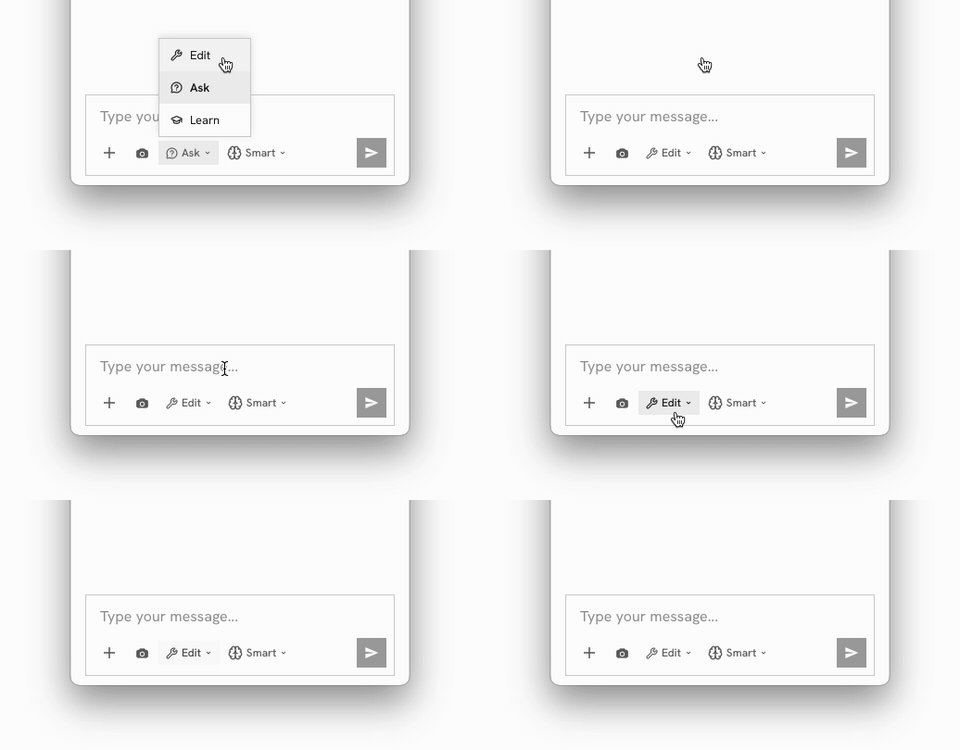
Ask, Learn and Edit Modes
Raven has three modes.
- Edit Standard mode where Raven unleashes it's full capabilities.
- Ask prevents Raven from editing your script. Good for exploration and troubleshooting.
- Learn helps you learn grasshopper. Raven as a private Tutor!
Picking the model
Economy is the default working gear. Smart costs more tokens and takes longer, and is worth it when the task needs actual reasoning rather than assembly.
Chat history
Threads are listed newest-first. Click one to reopen it exactly where you left off.
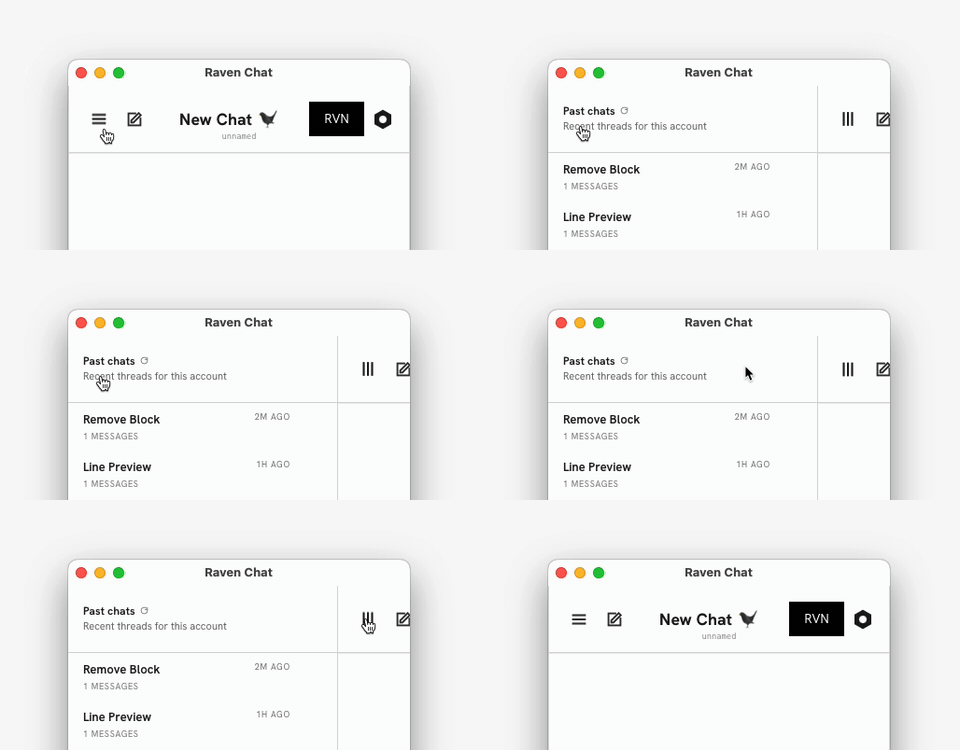
Starting fresh
Start a new chat by clicking the icon on the top left.
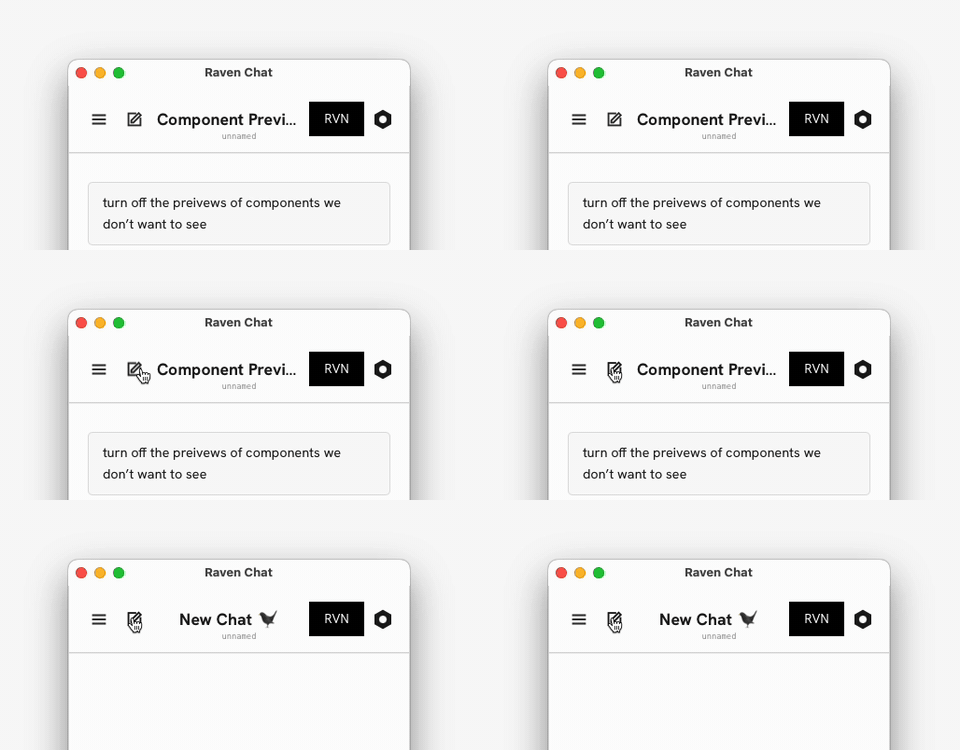
2. Action groups: seeing what Raven did
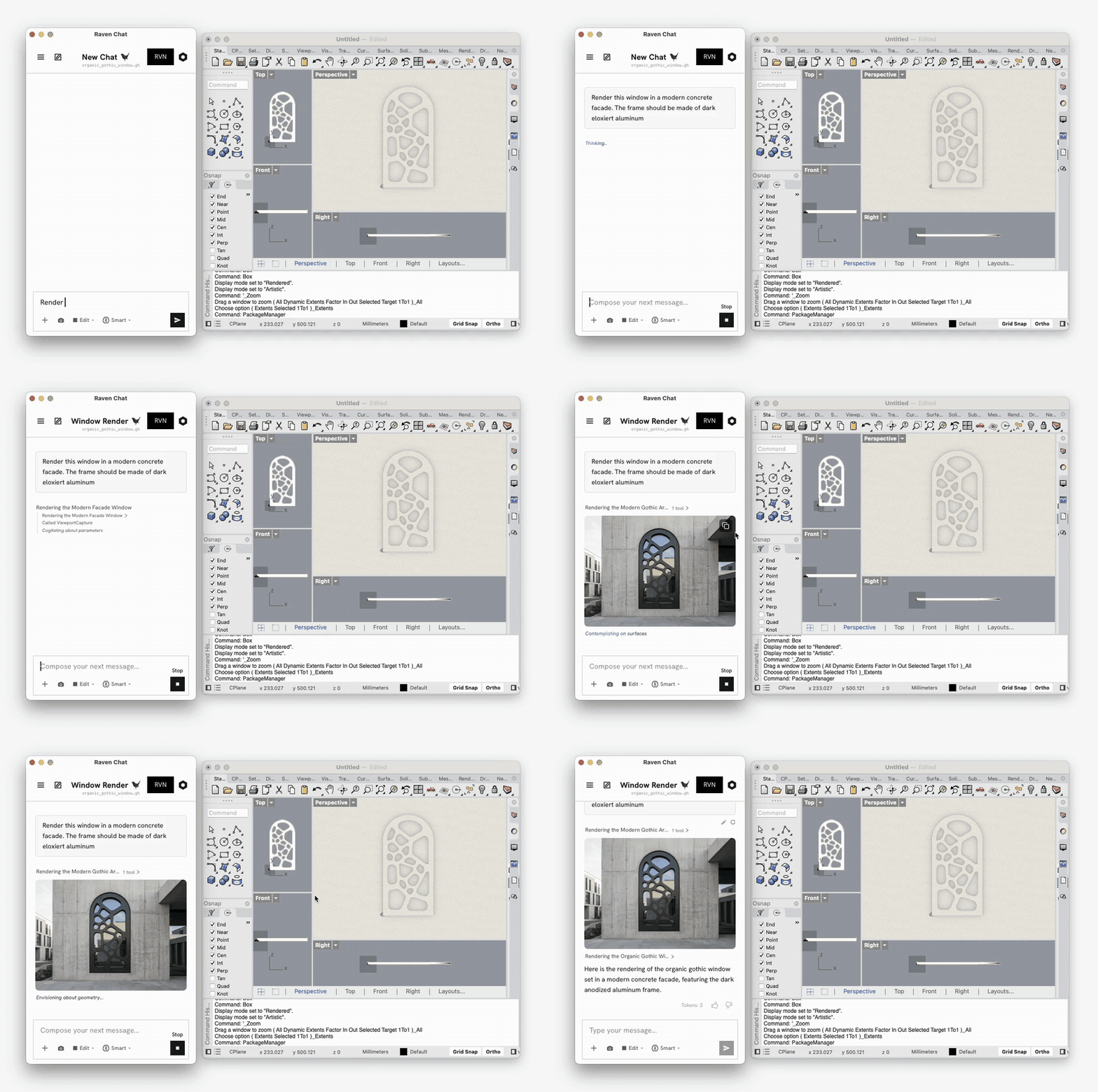
Raven doesn't just answer — it calls tools. Each turn is shown as an action group: a collapsible list of the concrete steps it took, in order.
✓ Called EditScript
✓ Captured Viewport
✓ Called Rendering
Expand it to see the individual steps. Collapse it to keep the chat readable. Reasoning is shown separately from actions, so you can follow why as well as what.
3. Undo and Accept/Reject
Every canvas mutation is snapshotted before it runs.
Press the Undo button to Undo the changes made by Raven.
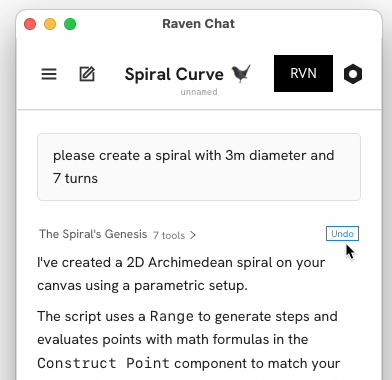
Because Raven registers its edits in Grasshopper's native undo stack, plain Ctrl+Z
Accept / Reject
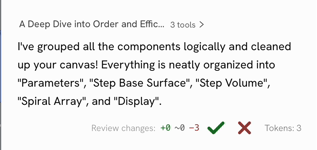
For larger edits Raven can put changes into review. The canvas shows the proposed result while the chat shows an accept/reject bar with a change count:
- ✓ Accept — keep the changes and clear the review.
- ✗ Reject — roll the document back to the snapshot taken before the run.
Reviews are fingerprinted against the document. If you've edited the canvas yourself in the meantime, Raven knows the review no longer matches the current state and handles it rather than silently clobbering your work.
The accept/reject bar at the end of a canvas cleanup — ✓ and ✗ next to the change summary: