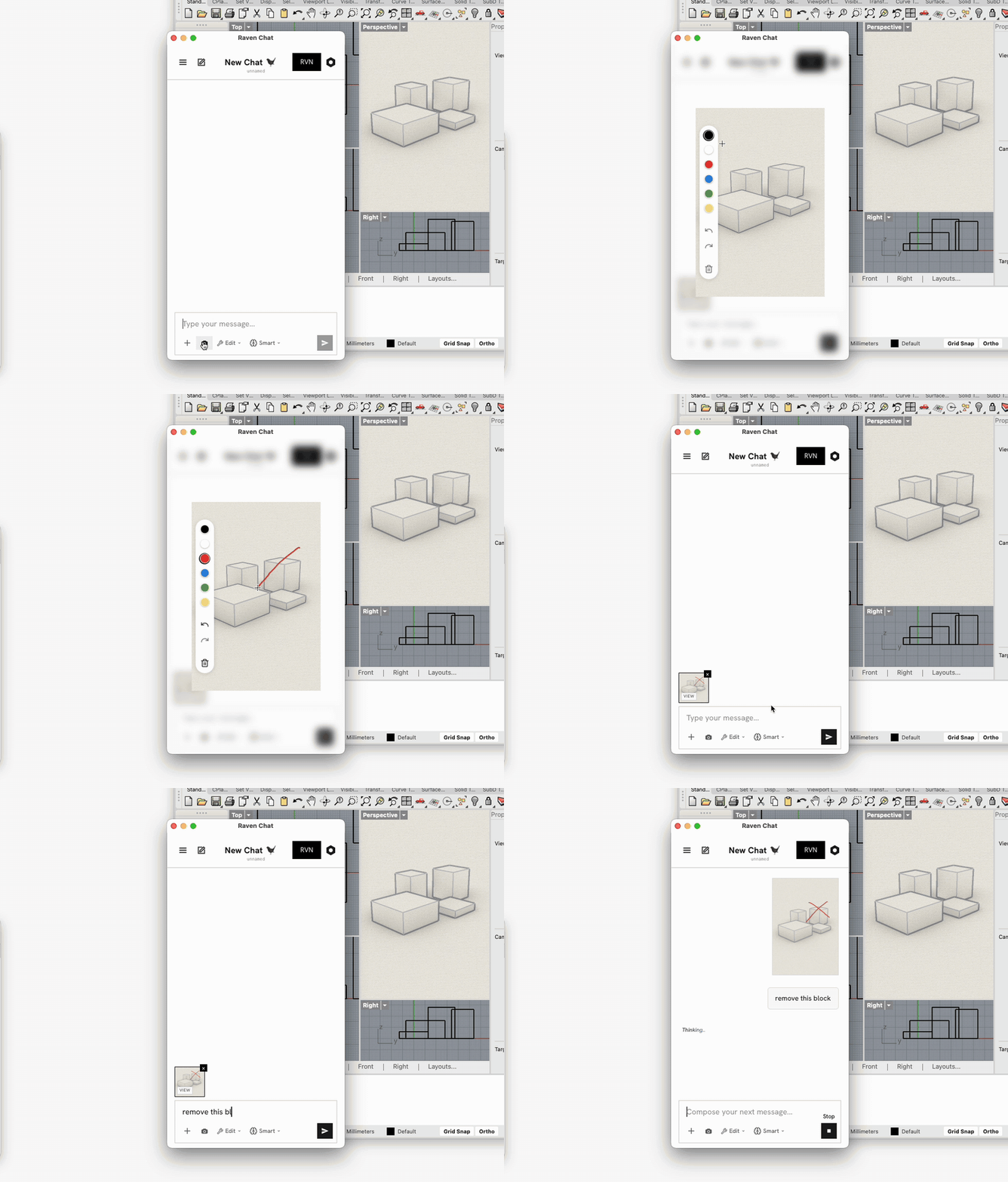
Drop in a reference image, a floor plan PDF, or a screenshot — then draw on it to point at exactly what you mean.
1. Adding images
Three ways to get an image into the chat.
| Method | How |
|---|---|
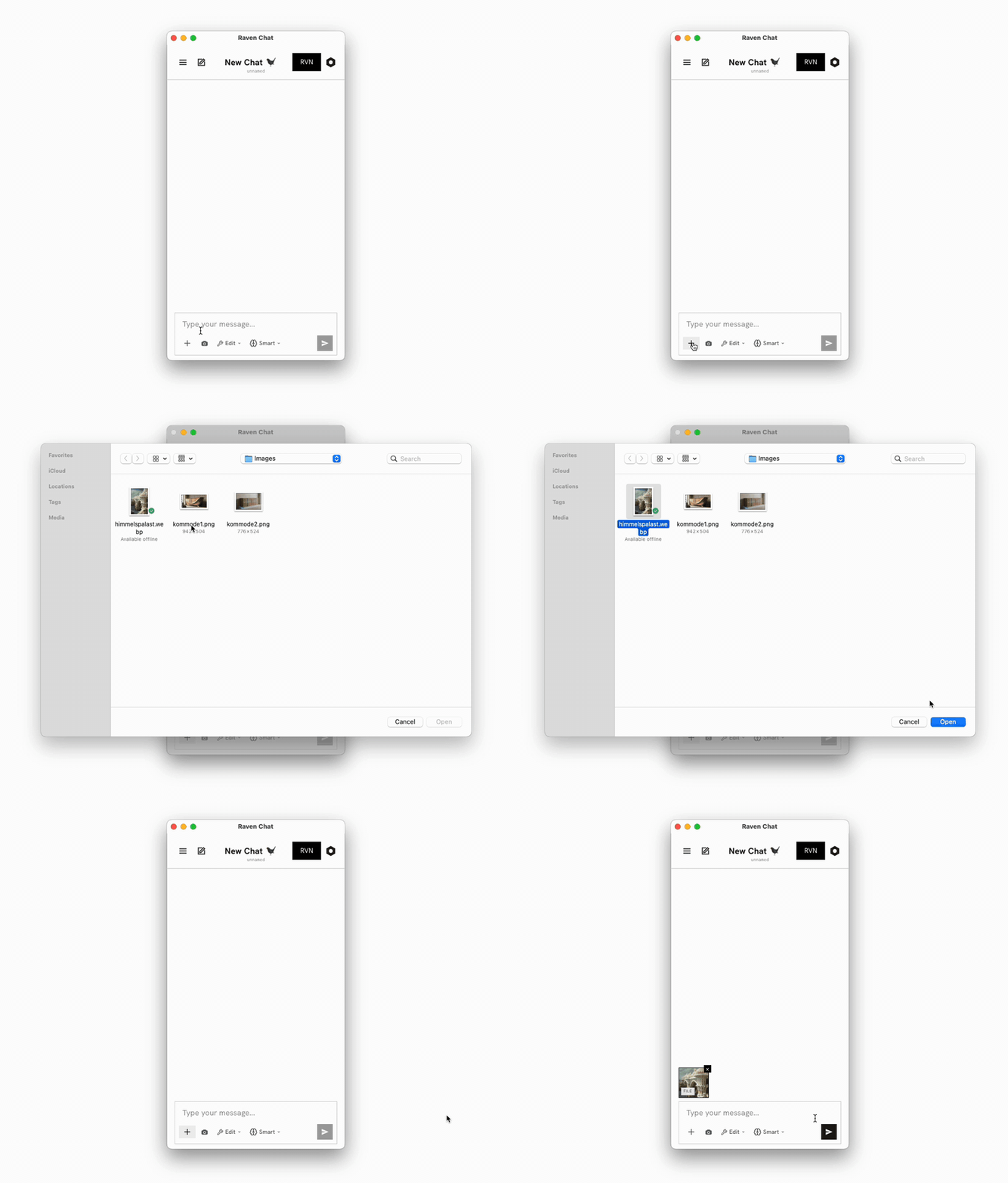
| Upload button | Click + and pick a file from disk |
| Paste | Cmd+V / Ctrl+V straight into the message box |
| Viewport capture | Click the camera button to grab the current Rhino viewport |
Images (PNG, JPG) and PDFs are both supported, several per message. Images are automatically resized before upload, so a 12 MP photo doesn't cost you a long wait.
Upload button
+ → file picker → pick the image → Open → attached, ready to send.
Paste
Snip a region of a reference drawing, click into the chat, hit Ctrl+V, and it's
attached — no file dialog, no saving to disk first. This is the fast path.
Viewport capture
One click on the camera button captures the current Rhino viewport and attaches it — no
screenshot tool, no cropping. Captures are tagged VIEW so you can tell them apart from
uploads.
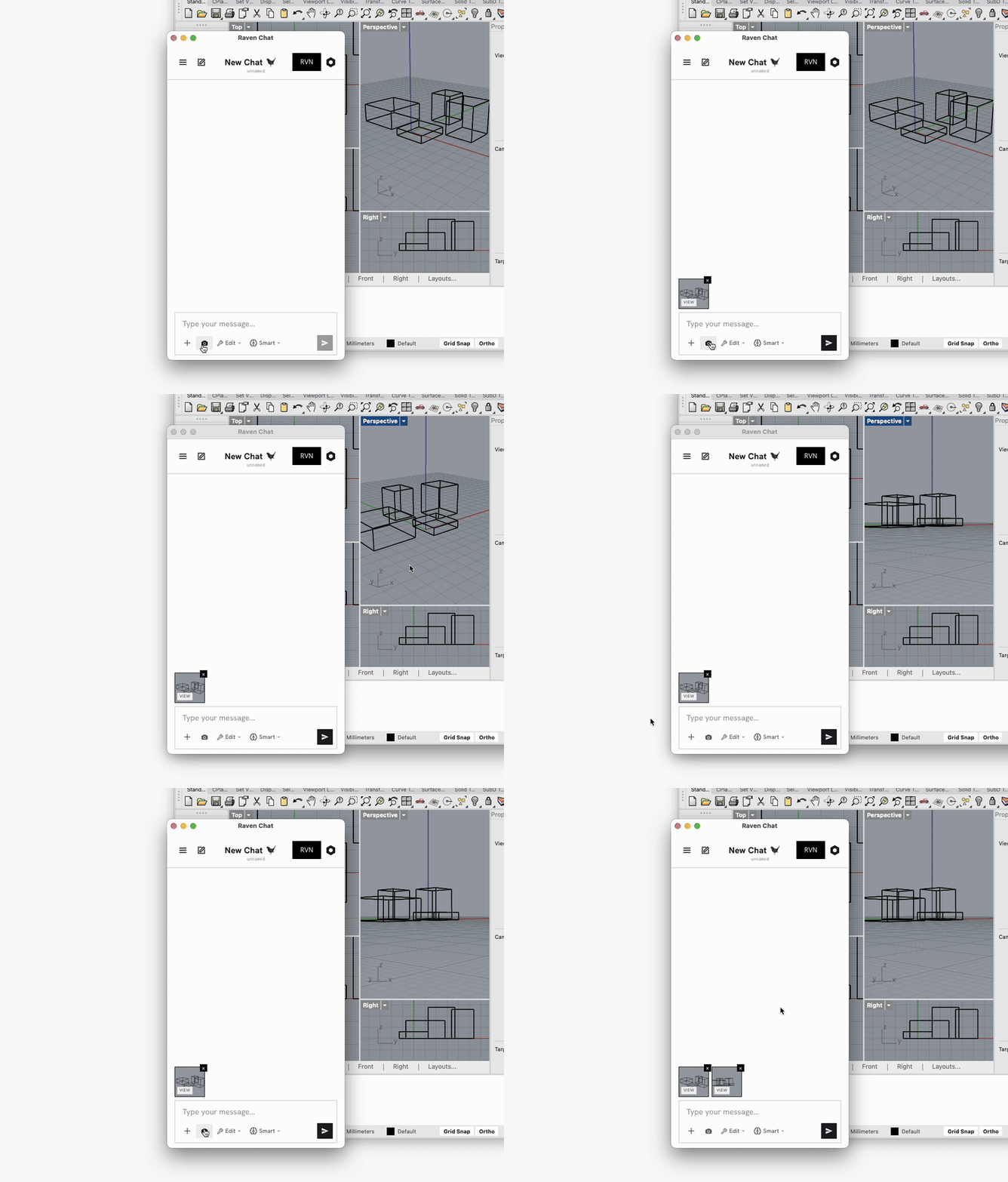
Raven can also capture the viewport on its own when needed!
2. Sketching on images
Any attached image can be drawn on before it's sent. Hover the thumbnail and click the sketch overlay to open the sketch editor.
- Draw directly on the image — circle a region, cross out an area, add an arrow.
- The original, unsketched image is preserved — you can re-open the sketch editor and adjust or redo your marks without re-uploading.